
How to Run a Website Audit (Step-by-Step Guide for 2026)
Most websites have problems their owners never see. A proper audit reveals what's broken, what's slow, and what's costing you traffic. Here's exactly how to do it — no technical background required.

What you'll learn
- →What a website audit actually involves and why it matters
- →How to check your site's speed, SEO, and accessibility in minutes
- →The exact steps to follow for a thorough audit
- →Which issues to fix first for the biggest impact
- →How to use free tools to automate the process
You've built a website. It looks decent. Traffic is coming in — maybe. But something feels off. Pages load slowly on mobile. Your Google rankings haven't moved in months. Visitors leave before they even scroll. Sound familiar?
The problem is rarely one big thing. It's usually a collection of small issues — a missing meta description here, an oversized image there, a render-blocking script nobody remembers adding. A website audit finds all of them, systematically.
This guide walks you through the entire process. Whether you're a business owner running your first audit or a developer looking for a structured approach, you'll know exactly what to check and how to fix it.
What Is a Website Audit?
A website audit is a systematic review of your site's health across four dimensions: speed, SEO, accessibility, and user experience. Think of it as a medical check-up for your website. You're looking for anything that prevents your site from performing at its best — in search engines, in browsers, and in the eyes of real visitors.
Most people assume their site is "fine" because it loads on their computer. But that's like checking your blood pressure once and assuming you're healthy forever. Websites degrade over time. New plugins get added. Images pile up. Third-party scripts slow things down. Without regular audits, these issues compound silently.
If you want to understand the full picture of what audits cover, our complete website audit guide goes deeper into the theory. This article focuses on the practical steps.
Step 1: Run a Speed Test
Start with speed. It's the most tangible metric and often reveals the most urgent problems. A slow site loses visitors before they even see your content — and Google has confirmed that page speed directly impacts rankings.
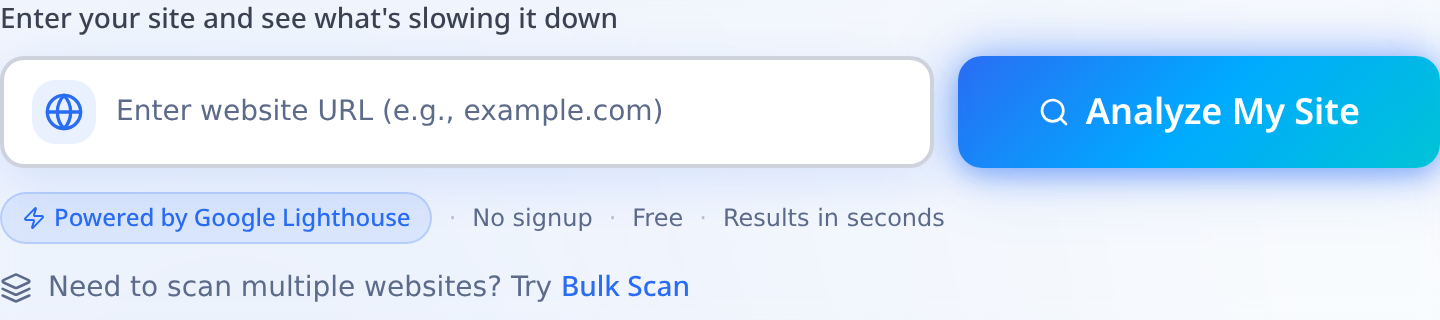
Open SnapSiteScan and enter your URL. Within seconds, you'll get scores for Performance, SEO, Accessibility, and Best Practices — all powered by real Google Lighthouse data. Pay attention to your Core Web Vitals: LCP (Largest Contentful Paint), INP (Interaction to Next Paint), and CLS (Cumulative Layout Shift).
The 3 screens of a real audit
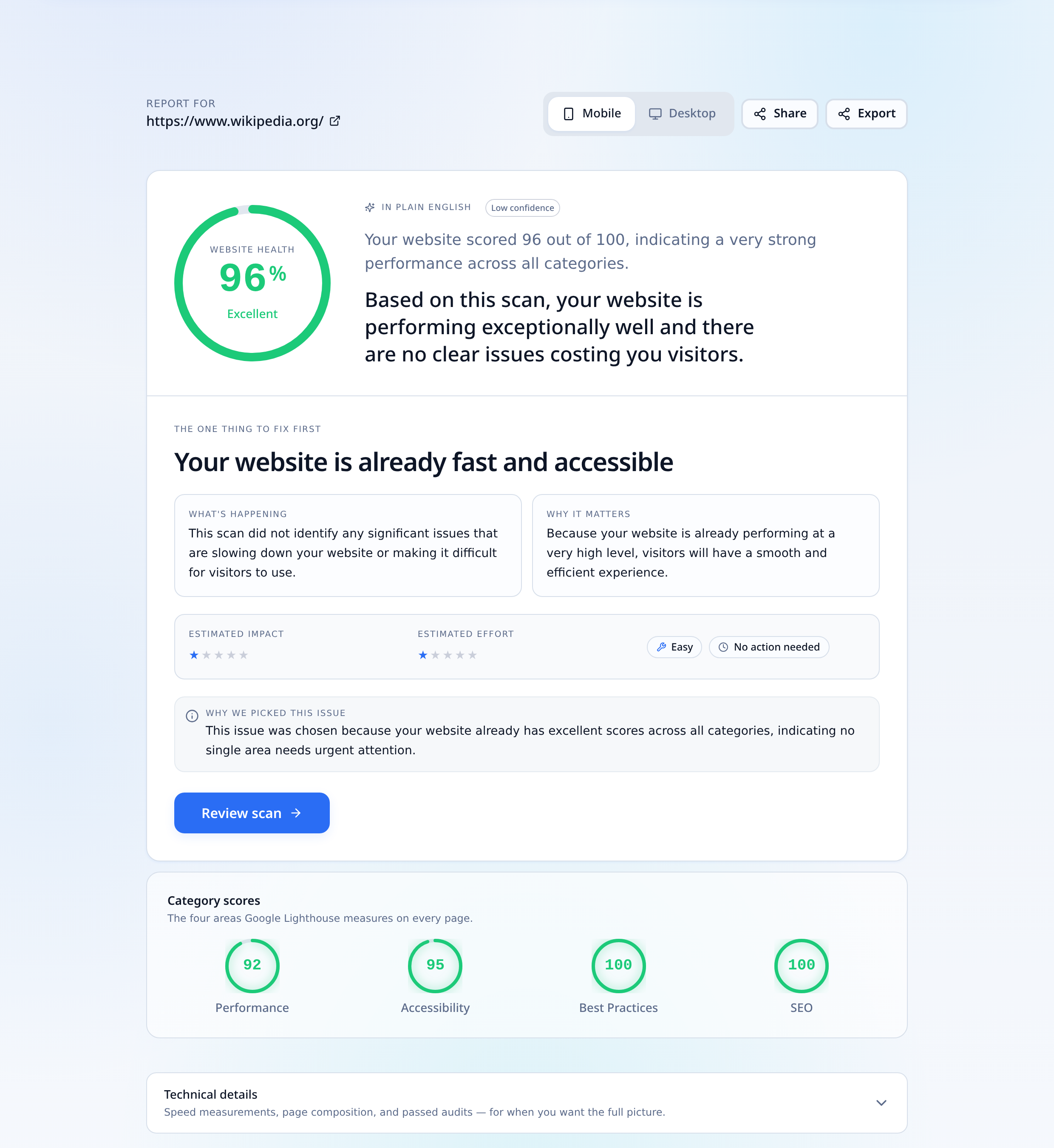
Here's exactly what running an audit looks like — no signup, no dashboard to learn. Paste a URL, wait ~45 seconds, read the plain-English verdict.

Contrast this with a "72" site
In our sister article, we ran the same scan on stripe.com and got 72. Wikipedia is a mostly-static content site; Stripe is a JavaScript-heavy fintech marketing site. Both scores are appropriate for what the site does — which is why comparing your score to a raw benchmark is misleading. See what a good score actually means for the full breakdown.
If your performance score is below 50, you have serious issues. Between 50 and 89 means there's room for improvement. Above 90 is solid. But don't fixate on the number alone — what matters is understanding why the score is what it is. The diagnostics section of your report tells you exactly that.
Make sure to test both mobile and desktop. Mobile performance is almost always worse, and it's what Google primarily uses for ranking. Our article on mobile vs desktop performance explains why the gap exists and what to do about it.
Step 2: Check Your SEO Fundamentals
Speed gets your foot in the door, but SEO determines whether Google actually shows your pages to people. During this step, you're looking for the basics that trip up most websites.
Check every page for: a unique title tag (under 60 characters), a compelling meta description (under 160 characters), a single H1 heading, and a logical heading hierarchy. These sound simple, but you'd be surprised how many sites have duplicate titles, missing descriptions, or multiple H1 tags on the same page.
Next, look at your internal linking structure. Every important page should be reachable within 2–3 clicks from the homepage. Orphan pages — pages with no internal links pointing to them — are essentially invisible to Google. If you want a more detailed checklist, our SEO checklist covers everything you need before launching or relaunching a site.

Step 3: Test Accessibility
Accessibility isn't just about compliance — it directly affects how many people can use your site. And Google increasingly uses accessibility signals as quality indicators. During your audit, check for these common issues:
Image alt text is the most frequently missed item. Every image should have descriptive alt text that tells screen readers (and search engines) what's in the image. Color contrast is next — if your text doesn't have enough contrast against its background, it's hard to read for anyone, not just users with visual impairments.
Form labels, keyboard navigation, and ARIA attributes round out the basics. The accessibility score in your SnapSiteScan report flags specific violations with links to documentation on how to fix each one.
Step 4: Review User Experience Signals
This is where most audits stop, but it's arguably the most important step. UX signals tell you whether real people actually have a good experience on your site. Google measures this through Core Web Vitals, but there's more to it than metrics.
Open your site on a phone. Really use it. Try to find information. Try to fill out a form. Try to read an article. Is the text large enough? Do buttons work? Does the layout shift as things load? These are the things that determine whether someone stays or bounces.
Check your Interaction to Next Paint (INP) score specifically. This Core Web Vital replaced FID in 2024 and measures how responsive your site feels when users interact with it. A poor INP score means your site feels sluggish even if it loads quickly.
Step 5: Prioritize and Fix
After running your audit, you'll likely have a long list of issues. Don't try to fix everything at once. Instead, prioritize by impact. Here's a general framework:
Fix first: Anything that breaks functionality — missing pages (404 errors), broken forms, security issues. Then tackle speed problems that affect Core Web Vitals — these have the most direct impact on rankings. After that, address SEO fundamentals like missing meta tags and broken internal links.
Fix next: Accessibility violations, image optimization, and render-blocking resources. These improve both user experience and performance scores. Finally, work on content quality — thin pages, outdated information, and duplicate content.
If you're unsure where to start, tools like SnapSiteScan sort issues by severity and estimated impact, making it easy to see what deserves your attention first. For a deeper dive into common problems and their solutions, check our guide on fixing common SEO issues.
How Often Should You Audit?
At minimum, run a full audit every quarter. But if you're actively making changes to your site — adding pages, updating plugins, changing design — you should scan after every significant update. Performance can degrade overnight with a single poorly optimized image or a new third-party script.
Setting up a performance budget helps prevent regression between audits. It gives you clear thresholds: if your LCP exceeds 2.5 seconds or your total page weight crosses 2MB, you know something needs attention before the next full audit.
The Bottom Line
A website audit isn't a one-time project. It's a habit that separates high-performing sites from the ones that slowly fade in search results. The good news is that it doesn't have to be complicated. With the right tool and a clear process, you can identify and fix problems in minutes rather than days.
The best time to run an audit was six months ago. The second best time is right now.
Scan your website instantly and see what's slowing it down.
Run your free audit now →Frequently Asked Questions
How long does a full website audit take?+
A free automated audit (Lighthouse + SEO + accessibility) takes 30-45 seconds. A thorough manual audit of a 50-page site, including content review and competitor benchmarking, takes 6-12 hours.
Can I run a website audit for free?+
Yes. Free tools like SnapSiteScan, Google PageSpeed Insights, and Search Console give you 90% of what paid tools offer for technical SEO and performance audits.
How often should I audit my website?+
Quarterly for a stable site, monthly if you're actively shipping changes, and after every major release. SEO and performance regress silently — the audit catches them before Google does.
What's the difference between SEO audit and website audit?+
An SEO audit focuses on search-engine factors (meta tags, structured data, crawlability). A website audit is broader — it includes SEO plus performance, accessibility, security, and UX.